How to move your reminders to a new phone
Remindio has no accounts and no servers of its own: your reminders live on your phone. That's good for privacy, but it means you decide where the backup goes. Set it up once, and a new phone, a factory reset or a lost phone won't cost you your reminders.
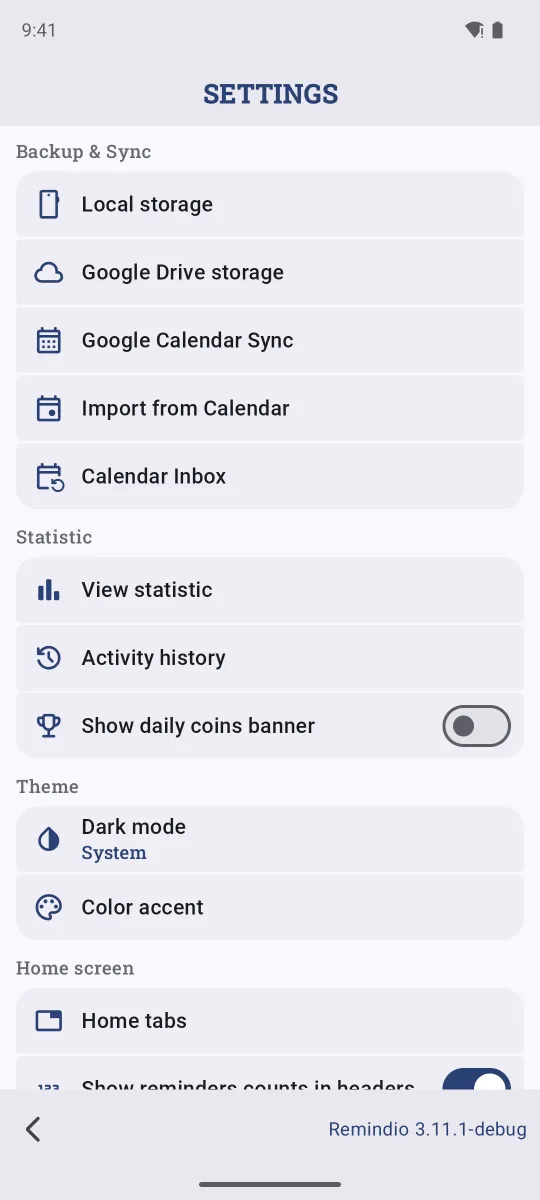
Short answer. On Android, open Settings → Backup & Sync. Save a backup file to the device, or sign in to Google Drive storage for automatic backups. On the new phone, install Remindio and load that backup. On iPhone, Remindio moves with your regular iPhone transfer or backup.
On Android
Back up
- Tap the gear on the home screen to open Settings. The first section is Backup & Sync.
- Choose where to keep the backup:
- Google Drive storage: sign in once, and Remindio backs up to your own Google Drive automatically every few days. Best for "set and forget".
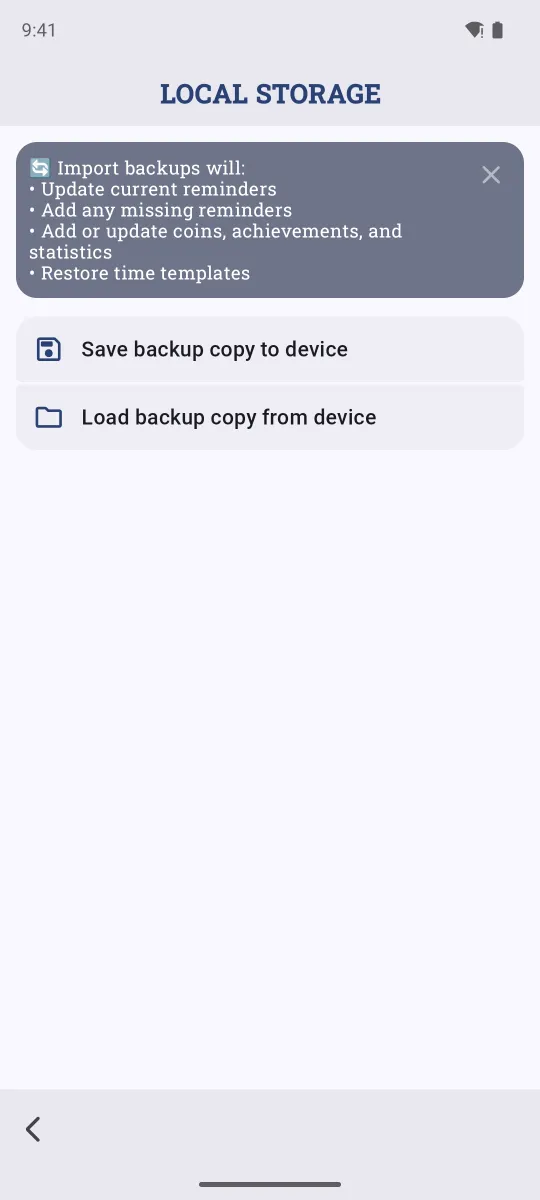
- Local storage → Save backup copy to device: saves a file you can copy anywhere, for example to a computer or another cloud.
Restore on the new phone
- Install Remindio from Google Play.
- Open Settings → Backup & Sync.
- For Google Drive, sign in to the same Google account and restore. For a file, open Local storage → Load backup copy from device and pick the file.
Loading a backup doesn't wipe what's already there: it updates matching reminders, adds missing ones, and brings back your statistics, achievements and time templates.
On iPhone
Remindio for iPhone keeps its data in the app on the device. When you set up a new iPhone with Quick Start or restore it from an iCloud or computer backup, your reminders come along with the app.
Android ↔ iPhone
The Android and iPhone apps store data separately, so moving reminders between platforms isn't possible yet. If you're switching to iPhone, Remindio can import your Apple Reminders, and on both platforms you can turn calendar events into reminders.
FAQ
Do I need a Remindio account?
No. There's no sign-up. Google Drive backups go to your own Drive, and Remindio has no servers that store your reminders.
Does Premium move to the new phone?
Yes. Sign in with the same Google account (Android) or Apple ID (iPhone) and tap Restore purchases on the Premium screen.
Reminders don't arrive on the new phone. Why?
A new phone starts with fresh battery and notification settings. See how to fix late notifications.
Related guides
Try Remindio for free
Free on Android and iPhone. No account needed.