How to set a reminder 5 working days from today
A card payment clears in 5 business days. A parcel can be returned within 7 working days. An invoice is due 10 working days after it arrives. Every time it happens, you count the days on a calendar, step over the weekend and hope no holiday is in the way. Remindio can do the counting for you: save the reminder as a template with a date like "in 5 days, not counting Saturday, Sunday and holidays", and every time you use it, the reminder lands on the right day.
Short answer. Create a reminder with the text and time you need, open the editor's menu and choose Create template. Tap Date, set Days from today to 5, pick Sat and Sun, turn on Public Holidays and Don't count these days. From then on, long-press + on the Home screen and tap the template.
Template dates arrived in Remindio 3.15 for Android and 1.6 for iPhone. If you don't see the Date row in a template, update the app.
On Android
- Tap + and write the reminder, for example Activate the card payment in the bank app. Set the time you want, for example 7:00 PM. The date doesn't matter yet.
- Tap ⋮ in the top right corner and choose Create template.
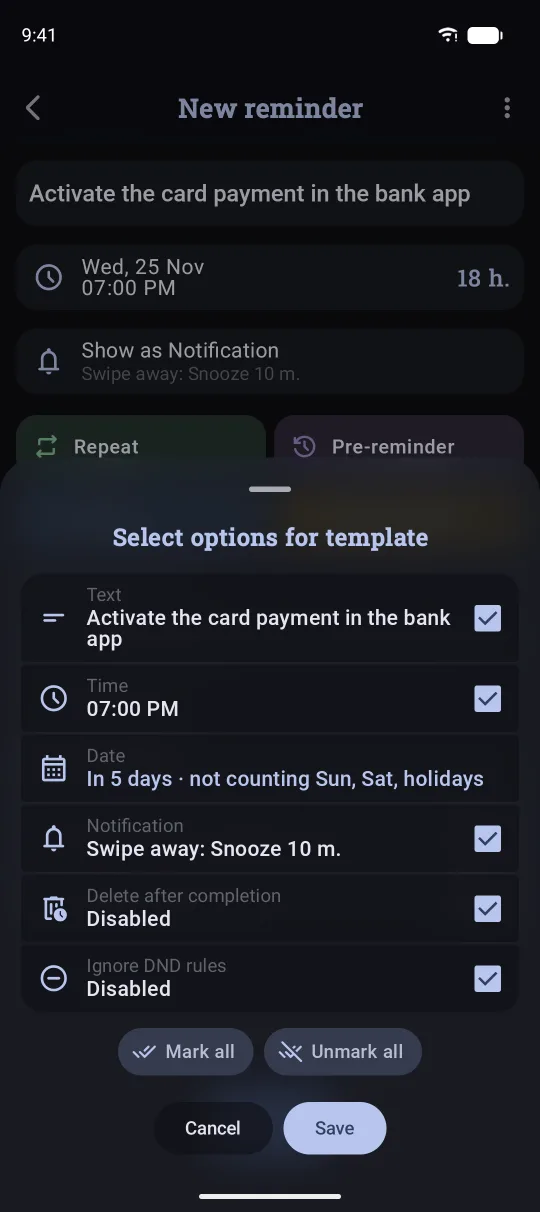
- In Select options for template, tap the Date row (it says Nearest day).
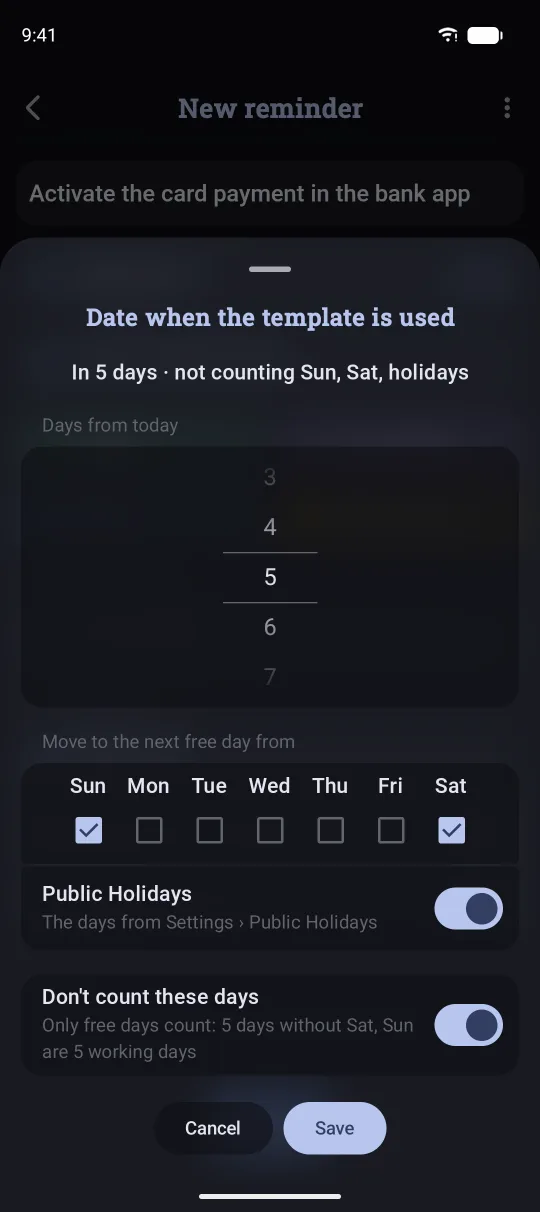
- Turn the Days from today wheel to 5.
- Under Move to the next free day from, tick Sat and Sun and turn on Public Holidays.
- Turn on Don't count these days and tap Save. The Date row now reads In 5 days · not counting Sun, Sat, holidays.
- Tap Save, give the template a name (Card payment) and save it. You can now leave the reminder you started without saving it.
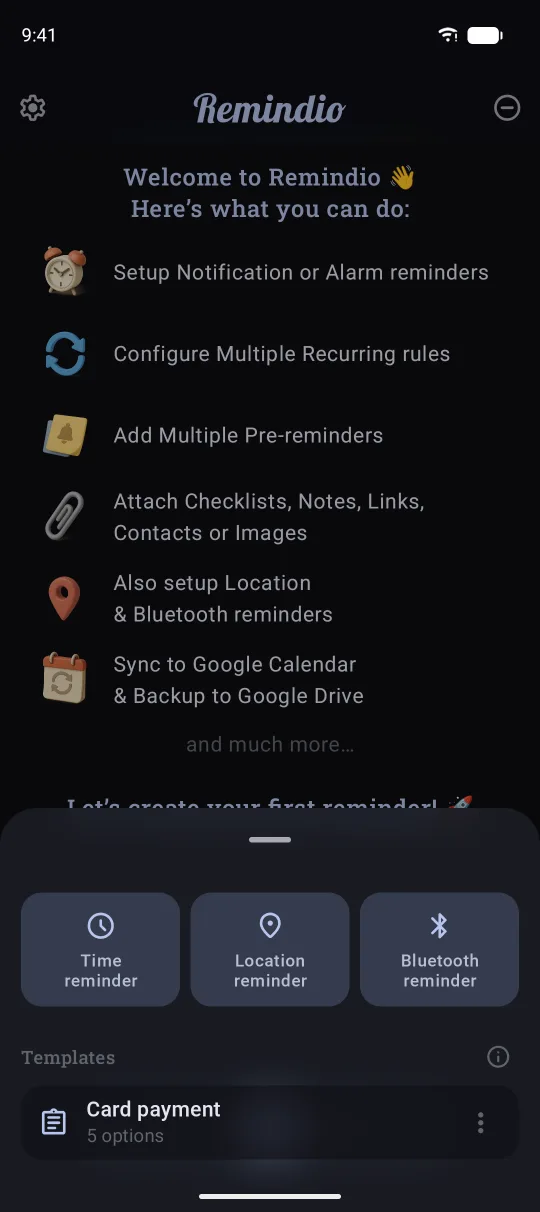
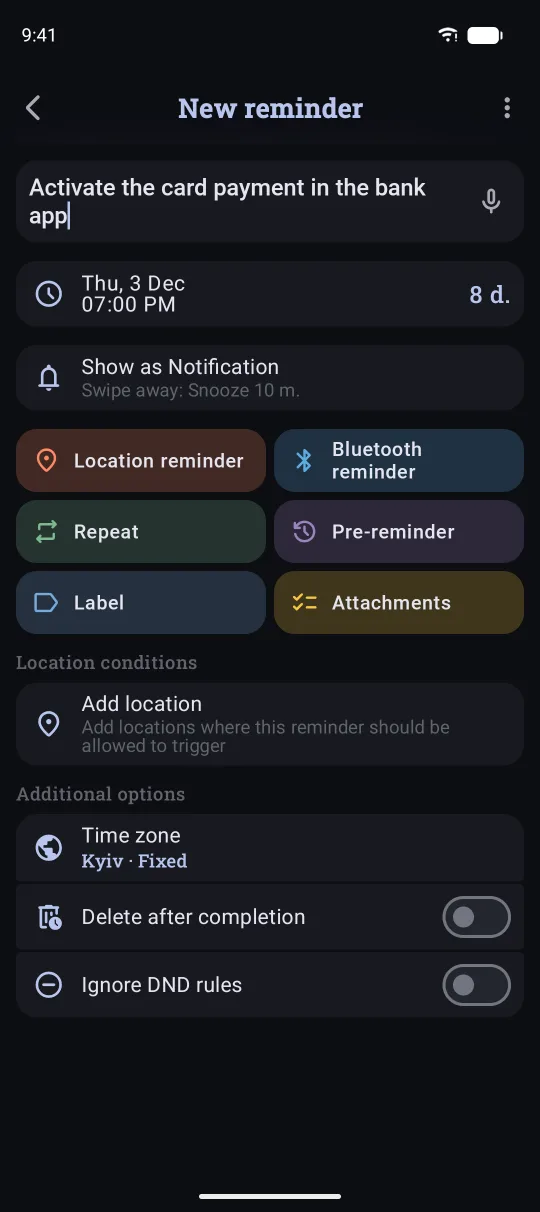
To use it, long-press the + button on the Home screen and tap the template. The reminder editor opens with everything filled in, and the date is already counted from today. Check it and tap Save.
On iPhone
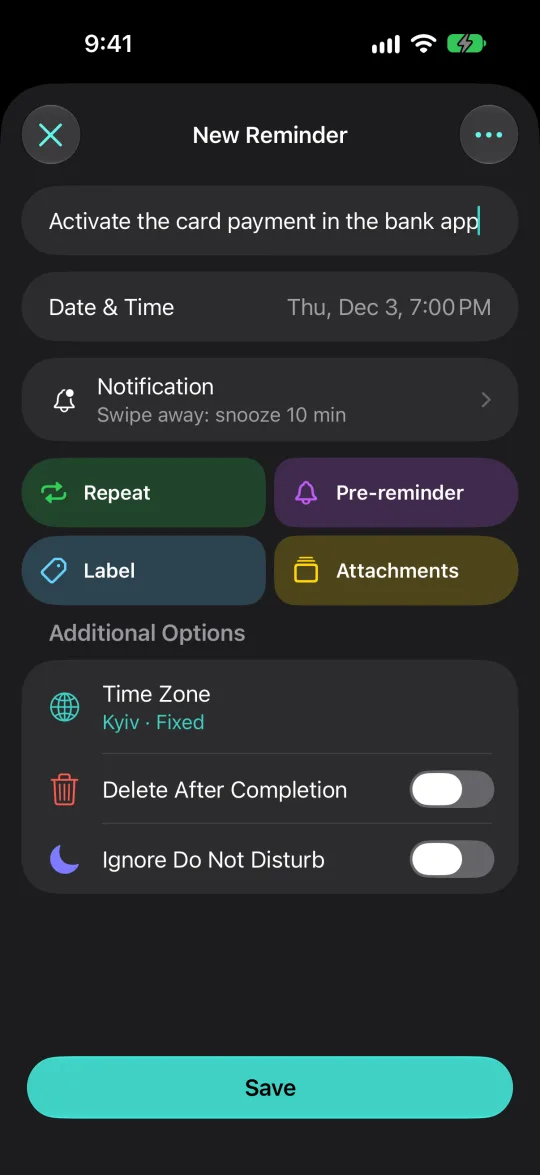
- Tap +, write the reminder and set the time in Date & Time, for example 7:00 PM.
- Tap ••• in the top right corner and choose Create Template.
- Tap Date (it says Nearest day).
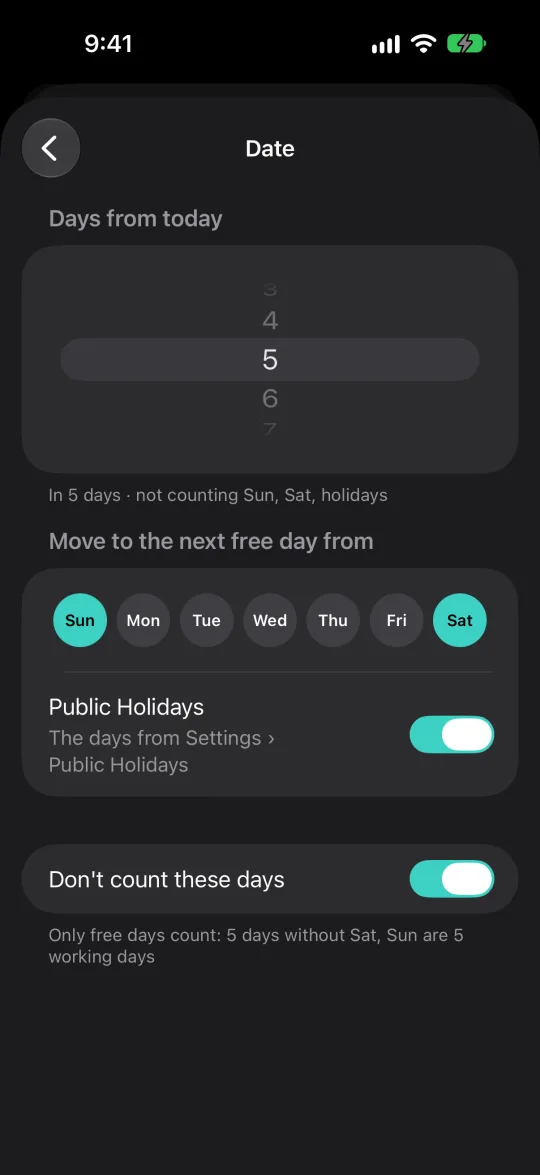
- Set Days from today to 5, tap Sun and Sat under Move to the next free day from and turn on Public Holidays.
- Turn on Don't count these days and go back.
- Tap Save, name the template and tap Save again. Close the reminder you started with Discard Changes if you don't need it.
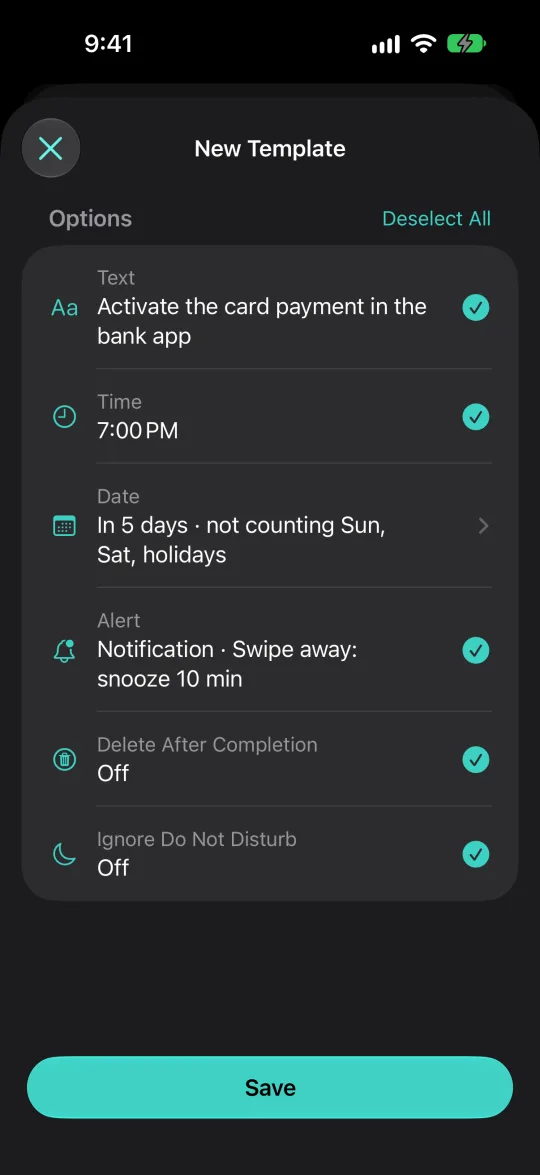
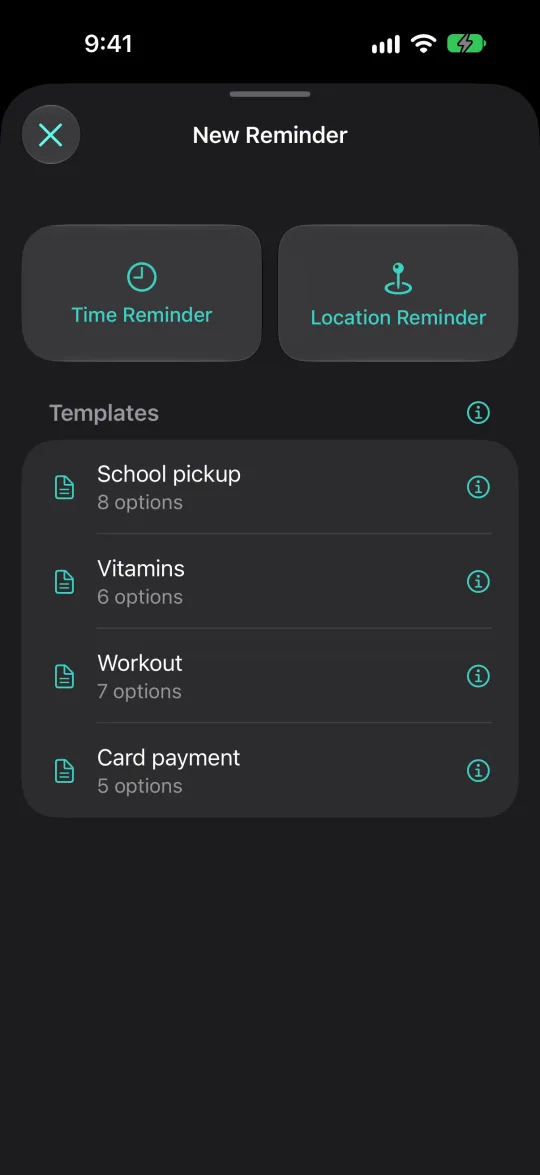
To use it, long-press + on the Home screen and tap the template under Templates. Then tap Save.
Move or don't count?
The days you pick under Move to the next free day from work in one of two ways, and the Don't count these days switch chooses which.
- Switch off: move. Remindio counts every day on the calendar. If the date lands on a picked day, the reminder moves to the next free day. Good for "in a week, but not on a weekend".
- Switch on: don't count. The picked days are left out of the count, as if they weren't on the calendar. 5 days without Saturday and Sunday are 5 working days. This is what banks and shops mean by "business days".
Say today is Tuesday, 24 November, the template says 5 days, and only Saturday and Sunday are picked:
| Setting | How it counts | Reminder |
|---|---|---|
| No days picked | Wed, Thu, Fri, Sat, Sun | Sunday, 29 November |
| Sat, Sun picked, switch off | Lands on Sunday, moves to the next free day | Monday, 30 November |
| Sat, Sun picked, switch on | Wed, Thu, Fri, | Tuesday, 1 December |
Public holidays work the same way. In the screenshots above, the template was used on Wednesday, 25 November, in the United States, where Thursday, 26 November is Thanksgiving. With the switch on, Thanksgiving and the weekend aren't counted: Friday, Monday, Tuesday, Wednesday, Thursday, 3 December. With the switch off, it's simply 25 + 5 = Monday, 30 November, a working day, so nothing moves.
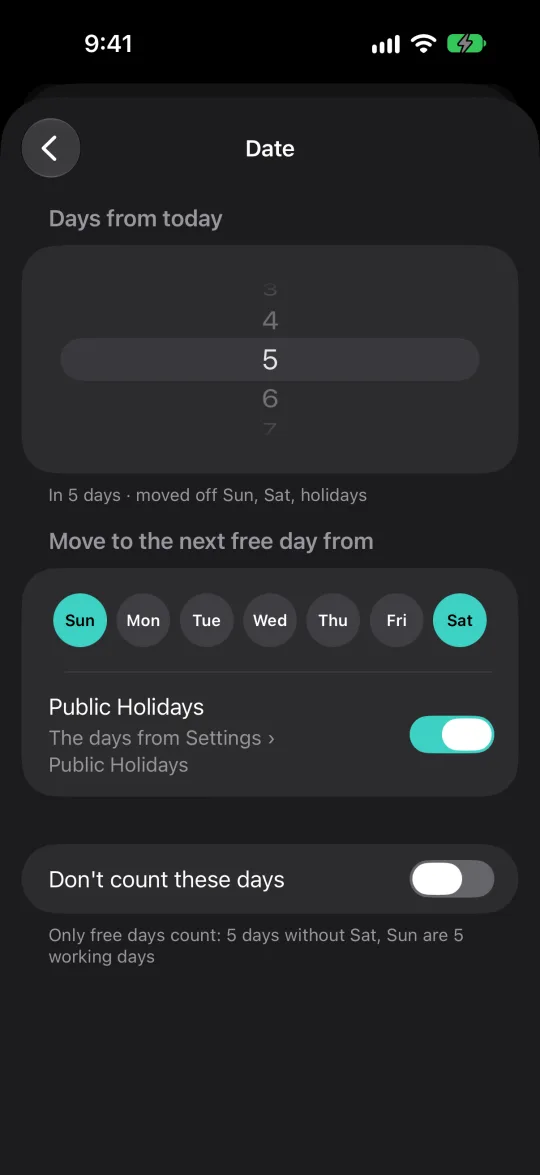
The line under the wheel always tells you which one is on: moved off … or not counting …. The holidays come from Settings › Public Holidays: Remindio detects your country, and you can add your own days off to the list.
Every 5 working days, again and again
A template makes one reminder each time you use it. If something repeats on a working-day schedule, like a report every 5 working days, use a repeat instead: Repeat › Daily, every 5 days, add an Adjusted rule for Saturday and Sunday (and one for public holidays), then turn on Don't count rule days. The repeat then reads Every 5 working days. Adjusted rules are explained in Repeating reminders that skip weekends and holidays.
FAQ
Does today count as one of the days?
No. Counting starts tomorrow, the same way a bank counts business days. 1 day on Friday with the weekend not counted is Monday.
What does 0 days mean?
0 is the nearest day, as before template dates: today if the time hasn't passed yet, otherwise tomorrow.
Can I check the date before saving the reminder?
Yes. Using a template only fills in the reminder editor, so you see the date first and can change it before you tap Save.
My weekend is Friday and Saturday. Does that work?
Yes. Pick any days of the week: Friday and Saturday, only Sunday, or a day you don't work. At least one day has to stay free.
Is it a Premium feature?
No, template dates are free on both Android and iPhone.
Related guides
- Repeating reminders that skip weekends and holidays
- How to set a reminder every 3 days on Android
- How to get reminded a day and an hour before
Try Remindio for free
Free on Android and iPhone. No account needed.